Showing posts with label How To. Show all posts

Sunday, October 25, 2015

How To Protect External Hard Disk Drives With Password

Time to protect your external Hard Drive with encryption ro secure you data from any unauthorized access
Security is always a first priority for ever user and when its about some personal data then it become more important. And talking about external hard drive disk where you stores lots of personal data that you might not store in your computer. And anyone else can have access to your data that is your data is not at all secure. So time to secure them with your desired password that you can set with the complete guide that we are going to discuss right here. So have a look on complete guide discussed below to protect your external drive with a security password.

How To Protect External Hard Disk Drives With Passwords

How to Protect External Hard Disk Drives With Passwords
The method below discussed is just base on system settings that will allow you to lock your drive with password without any need of third party tool as the inbuilt feature is there in windows to protect drives and another with a third party tool. Just follow up some simple steps below to proceed.

Steps To Secure Your External Hard Drive With BitLocker:

  1. First of all connect your external hard drive to your Windows Pc and turn it on.
  2. Now click on Start button and then navigate to Control Panel -> Security -> Bitlocker.Encrypt Drive1
  3. Open the program and then click on Turn On BitLocker which you get just next to your external hard drive.Encrypt Drive2
  4. Now there tick on “Use a Password to Unlock the Drive” option there and the enter a same password in both fields and then click on “Next“.Encrypt Drive3
  5. Now time to save your key somewhere for that click on “Save the Recovery Key to a File,” and then select any location where you want to save your key for future reference.
  6. Now click on save option and the proceed by clicking on next button.
  7. Now click on Start Encryption option and wait for the process to complete and it can take a time to complete depending upon drive size.
  8. Thats it you are done, now you drive will always a require a password to access files inside it.

Steps To Password Protect Your External Drive With StorageCrypt

  1. First of all in your windows PC download and install the tool StorageCrypt.
  2. Now launch the tool and then connect your drive with PC.
  3. Now in the tool select your device to encrypt with password.
  4. Now select quick mode and then protect your drive with your desired password.Encrypt Drive4
  5. Now start the tool and encryption process will start and your drive will now get secure with your set password.
Also read:
So above is all about How To Protect External Hard Disk Drives With Password. With the above two methods you can easily secure your external hard drive with your desired password and get secured from any unauthorized access.
Hope you like this cool post, Do Hit the SHARE BUTTON Below... THANKS.

How To Change Boot Screen In Your Windows PC

For windows users we are here How To Change Boot Screen In Your Windows PC. While booting in your windows pc you see default windows loading process that are by default windows boot screen. But the screen see quite be boring because watching the same screen again and again is not cool. But this can be changed, yes it is possible to change your Boot screen and you can replace them with a very cool one that you will love to have. So proceed with complete guide below.

How To Change Boot Screen In Your Windows PC

The method is very simple and can be done using one windows tweak that will change the file of your default boot screen and replace it with a very cool one that you will surely love instead of boring one. So proceed with the steps below.

Steps To Go About It:

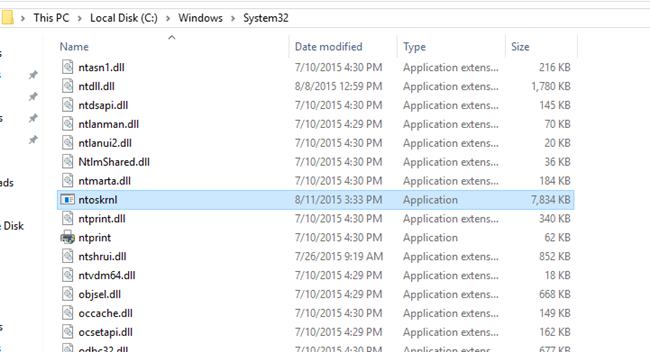
  1. First of all you need to create a backup of your windows boot screen system file for that go to My Computer > C:/ > Windows > System32.
  2. Now there you will see file ntoskrnl.exe copy and paste the file in any other location of your computer.
  3. Now download and install Resource Hacker in your computer.
  4. Now after downloading and installing launch the tool in your windows PC11
  5. Now in the program click on File and then select Open option and then locate thentoskrnl.exe file.
  6. Now when the file is opened click on Action button there and then select replace Bitmap option.
  7. Now there select any of your desired screen and then click on OK button.
  8. Now click on File button and then choose Save As option.
    And now save the file as ntoskrnl.exe.
  9. Now, turn your PC off and then start it in the Safe mode.
  10. Now copy your created ntoskrnl.exe file and paste it into the C:/ > Windows >System32.22
  11. Now restart your computer in normal mode.
  12. Thats it you are done, with this you boot screen is changed with awesome image that you have selected.
The above is all about How To Change Boot Screen In Your Windows PC. With this you can easily get a new look in your windows and can get rid of the default look that you never want to get back again after this cool windows tweak. 
Hope you like this, SHARE this with others too...THANKS.

How To Recover Data From Crashed Operating System

For windows users we are here with a cool method for How To Recover Data From Crashed Operating SystemDue to viruses or any other factors operating system gets crashes in general cases and then your data is not accessible at that time. And the most worst case in then when you have your important data in your drive where OS was installed. Because when you install a new OS then the drive gets formatted and all your data get deleted. So here we have a way by which you can recover your lost data in crashed OS.

How To Recover Data From Crashed Operating System

In this method we will be discussing a way to recover out data before installing new OS that gonna deletes all your data installed in the drive containing OS. So have a look on the steps discussed below to proceed.

Steps To Recover Data From Corrupted OS:

  1. First of all download the Windows 7 USB/DVD Download Tool. This tool is available for free of cost by Micosoft Corporation.
  2.  Don’t worry with software’s title thats is Windows 7. But this software works perfectly fine with Windows 7,8 or 8.1 and windows 10.
  3. Now you have to install the downloaded software. After installing it now you have to run it.1
  4.  Now in the opened window as shown below click on browse. Now locate the path ofWindows ISO file and select it then click on next button.
  5. Now in the next opened window you have to click on USB device because we are making bootable USB/Pendrive.
  6. The next thing is that you have to select the pendrive  which you want to make bootable. Make sure that the your pendrive is empty. if not so then don’t worry a pop  up will opens saying to erase data on your selected USB.2
  7. Now the only thing is need to is just to copy windows files to do so you have to just click on Begin Copying. It takes around 20-25 minutes depending upon your system to make bootable USB. Lastly when you see the message “Bootable USB Device created successfully“.
  8. Now boot this Windows USB in your computer and there open recover option and browse  there and move your important data in your pendrive.
The above is all about How To Recover Data From Crashed Operating System. Using this method you can easily recover your C drive data without installing the new windows and loosing all your important data. 
Hope you like this post, keep on sharing with others too...THANKS.

How To Restart Android in Safe Mode to Troubleshoot Problems

Today many of our users are using android device and there are lots of features that android OS provides to their users. With advancement in technology many new featured android device are now available in market having much RAM and memory capacity. But with the time the speed of android get slow , like old androids stuck in between the tasks and mostly user have to remove out the battery to fix it. But you have one alternative than this that is How To Restart your Android Phone in Safe Mode to Troubleshoot Problems . With this method you can reboot your android into safe mode and do your work with higher speed. Read out the complete guide below.
Restart your Android Phone in Safe Mode to Troubleshoot Problems
Many of you must be familiar with the safe mode of your windows operating system, where you can fix out many software related problem by booting into it. Similarly you can boot into safe mode of youer android and can fix out the software related issue in your android device like, uninstalling the app and managing some data that requires fast switching of android. So follow the below steps to boot your android in safe mode and troubleshoot its problems.

Steps:

  1. First of all you need to Power off your android device and after some seconds power it on.
  2. Now long press your power off/sleep button of your android.
  3. Now you will see options like power off, restart etc long tap on Power off option.
  4. Now you will see the hidden safe mode option click on ok.Safe mode
  5. Now your device will reboot into safe mode with safe mode written on the corners of scree.
  6. Do all your work in fast speed in safe mode, or you can fix out the problems you faced in normal mode.
  7. Now to exit from safe mode just power off your device and restart it. Now you will be out of safe mode and get back to normal mode with fix of all problems.
Conclusion:
So above is all about Restart your Android Phone in Safe Mode to Troubleshoot Problems. This is the best and easy way to make your slow android run faster and fix out many problems like uninstalling some apps that you can’t do in your slow stucky android. You can also remove viruses from your android in this mode and make your android run faster. Hope you like the discussion, don’t forget to share it with others too. Leave a comment below if you have any related queries.

How to Add an Advertisement Below Post Title in Blogger

This tutorial explains how to display an advertisement under post title in a Blogger blog posts. To add a ad banner just below post title, first you need to go to "Edit HTML" page of your blog.

After that find this code (You will find it 2 times):

<div class='post-header'>
<div class='post-header-line-1'/>
</div>
Blogger Edit HTML

Now paste your advertisement code just below above code (you have to paste it twice, because above code available in 2 places).

Note: If you need to display your advertisement only in post pages, wrap your advertisement code like this:

<b:if cond='data:blog.pageType == "item"'>
Your Ad Code
</b:if>

Look at this image to understand it well:

Ad Below Post Title in Blogger

Save your Blogger template.

How To Add Random Posts Widget to Blogger

Follow the easy steps below to add Random Posts Widget to your blog.

1.Log in to your dashboard--> layout- ->Page Elements

2.Click on Add a Gadget on the sidebar.

3.Select HTML/Javascript and add the javascript code given below and click save.

<div id="myLuckyPost"></div> 
<script type="text/javascript"> function showLucky(root){ var feed = root.feed; var entries = feed.entry || []; var entry = feed.entry[0]; for (var j = 0; j < entry.link.length; ++j){if (entry.link[j].rel == 'alternate'){window.location = entry.link[j].href;}}} function fetchLuck(luck){ script = document.createElement('script'); script.src = '/feeds/posts/summary?start-index='+luck+'&max-results=1&alt=json-in-script&callback=showLucky'; script.type = 'text/javascript'; document.getElementsByTagName('head')[0].appendChild(script); } function feelingLucky(root){ var feed = root.feed; var total = parseInt(feed.openSearch$totalResults.$t,10); var luckyNumber = Math.floor(Math.random()*total);luckyNumber++; a = document.createElement('a'); a.href = '#random'; a.rel = luckyNumber; a.onclick = function(){fetchLuck(this.rel);}; a.innerHTML = 'Are ya feeling lucky, punk?'; document.getElementById('myLuckyPost').appendChild(a); } </script> 
<script src="/feeds/posts/summary?max-results=0&alt=json-in-script&callback=feelingLucky"></script>

How To Add jQuery Related Posts Widget for Blogger

1.Login to your blogger dashboard--> layout- -> Edit HTML

2.Click on "Expand Widget Templates"

3.Scroll down to where you see <p><data:post.body/></p> .

4.Copy below code and paste it just after the <p><data:post.body/></p> .

<script src="http://ajax.googleapis.com/ajax/libs/jquery/1.3.2/jquery.min.js" type="text/javascript"></script>

<script src="http://blogger-related-posts.googlecode.com/files/related-posts-widget-1.0.js" type="text/javascript"></script>

<script type="text/javascript">relatedPostsWidget({'containerSelector':'div.post-body','loadingText':'loading...'});</script>

5.Click on "Save Templates" and now you are done.It will look like this.

Note : If you can, host jquery.min.js and related-posts-widget-1.0.js files yourself.

How To Add ‘Digg it !!!’ Links to your blogger posts

1.Log in to your dashboard--> layout- -> Edit HTML
2.Click on "Expand Widget Templates"
3.Scroll down to where you see this:

<p><data:post.body/></p>

4.Copy below code and paste it immediately after the line <p><data:post.body/></p> .

<a expr:href='&quot;http://digg.com/submit?phase=2&amp;url=&quot; + data:post.url + &quot;&amp;title=&quot; + data:post.title' rel='nofollow' target='_blank'>Digg it !!!</a>

5.Click on "Save Templates" and now you are done.

How To Change Heading Tag For Better SEO in Blogger

Heading Tags (h1, h2, h3, h4, h5) of a website are very important for SEO (Search Engine Optimization). All of Blogger widgets (gadgets) titles use h3 or h2 tags. Many blogger templates are using h2 or h3 tags for post titles. But If you are looking for ways to improve your site SEO, using h1 tags for post titles is a one way to do it.

Follow the simple steps below to do it:

1.Login to your Blogger account and go to "Edit HTML".
2.Now you have to find the code responsible for creating post tiles.

Blogger Post Title Code

Find the code 1. But if you can not find it, find the code 2 (you will see code 1 or code 2 in 2 locations in your theme):

Code 1:
<b:if cond='data:post.title'>
  <h3 class='post-title entry-title' itemprop='headline'>
  <b:if cond='data:post.link'>
 <a expr:href='data:post.link'><data:post.title/></a>
  <b:else/>
 <b:if cond='data:post.url'>
   <b:if cond='data:blog.url != data:post.url'>
  <a expr:href='data:post.url'><data:post.title/></a>
   <b:else/>
  <data:post.title/>
   </b:if>
 <b:else/>
   <data:post.title/>
 </b:if>
  </b:if>
  </h3>
</b:if>

Code 2:
<b:if cond='data:post.title'>
  <h3 class='post-title entry-title' itemprop='headline'>
  <b:if cond='data:post.link or (data:post.url and data:blog.url != data:post.url)'>
 <a expr:href='data:post.link ? data:post.link : data:post.url'><data:post.title/></a>
  <b:else/>
 <data:post.title/>
  </b:if>
  </h3>
</b:if>

Note: These codes have some differences according to your template. If you can't find code 1 or code 2, search it replacing h3 with h2.

3.Now if you found code 1, replace it with below code (you have replace both code 1):

<b:if cond='data:post.title'>
  <h1 class='post-title entry-title' itemprop='headline'>
  <b:if cond='data:post.link'>
 <a expr:href='data:post.link'><data:post.title/></a>
  <b:else/>
 <b:if cond='data:post.url'>
   <b:if cond='data:blog.url != data:post.url'>
  <a expr:href='data:post.url'><data:post.title/></a>
   <b:else/>
  <data:post.title/>
   </b:if>
 <b:else/>
   <data:post.title/>
 </b:if>
  </b:if>
  </h1>
</b:if>

If you found code 2, replace it with below code (you have replace both code 2):

<b:if cond='data:post.title'>
  <h1 class='post-title entry-title' itemprop='headline'>
  <b:if cond='data:post.link or (data:post.url and data:blog.url != data:post.url)'>
 <a expr:href='data:post.link ? data:post.link : data:post.url'><data:post.title/></a>
  <b:else/>
 <data:post.title/>
  </b:if>
  </h1>
</b:if>

4.Click on "Save template" and now you are done.

Don't forget to SHARE this article... Hit the Share Button below..
Thanks.

Friday, October 23, 2015

How To Protect USB Pendrive With Password


How To Protect USB Pendrive With Password
Desktop or Laptops are become part of our personal and professional life. We use them for entertainment and also for many other purposes. We are know dependent on computer for many different task like we use internet, play games, entertainment, work and more. So due to all these sometimes our device get slow down in speed. So i recommend to read about How To Make PC Or Laptop Speed Fast. Usually we store data in computers of multiple type. Due to huge amount of data is store, We need to take backup or we want to transfer them from on device to anther. So use USB devices to exchange data between computers. USB drives are also called pendrive or flash drives. These drives are compact in size and offer large data storage capacity. USB drives are plug and play drives and has more life than CD's and DVD's  and also provide re-writable features. As we Know USB drives are portable and used to transfer data.  Normally USB have good data transfer speed but after passage of time USB get slow down then must check our How to increase pendrive data transfer speed.
Usb pendrive are used for data transfer. We can even perform various other task with pendrive like we can Use pendrive as ram. Traditionally we CD or DVD disk for installing Now we can easily  Make bootable Usb pendrive for windows. Sometimes we need to keep our information secret and protect our data from misuse by others and remain safe. In this article i explain the methods to protect usb pendrive with password.

Ways To Protect USB Pendrive With Password

Method 1st:- BitLock Encryption

Bitlock Encryption is the manual method provided by Windows to protect our USB drive. Each time you insert the pendrive you have to enter the bit lock to open the pendrive and access the files.

Steps To Encrypt USB Pendrive using BitLock.

Step 1. Insert your USB into Computer.
Step 2. Right click the USB drive you want to Encrypt.
Step 3. Select turn on Bitlock from Menu.
usb pendrive right click bitlocker properties

Step 4. Tick the check box in front of  "use a password to unlock the drive".
bitlocker drive encryption with password

Step 5. Click on next button after entering a password.
Step 6. Next wizard is to save and print Recovery key in case you forgot your password.
bitlocker drive encryption pendrive with password
Step 7. click on next button and drive encryption will start.
bitlocker drive encryption
Step 8. After the encryption is complete click on close button.

Method 2nd:- Wondershare USB Drive Encryption.

Wondershare USB Drive Encryption is software used to encrypt the USB drive and allow you to use a password  to encrypt and  decrypt the USB. This software allow you to make a secure area in your drive and you can also protect the whole drive.

Steps To Encrypt USB Pendrive Using Wondershare.

Step 1. Download and install Wondershare USB Encryption software.
Step 2. Double click its icon to Run the Program.
Step 3. Insert your USB into your computer.
Step 4. Select your drive you want encrypt from the list of USB.
wondershare usb drive encryption

Step 5. Select the Amount of volume you want to encrypt and you can also select full amount.
wondershare usb drive encryption installing

Step 6. Click  on  Install Button.
Step 7. Enter a user name and Password for Encryption.
wondershare usb drive encryption account information
Step 8. Click OK to create secure Area.
Step 9. After progress click OK.

So these are some easiest and best way to make password protected usb pendrive. If you have any other best method to protect pendrive with password then must it with us in below given comments.

Wednesday, September 30, 2015

How To Change Your IP Address in Windows & MAC

How To Change Your IP Address 2015
We are going to share a trick on How To Change Your Ip Address in Windows & MAC OS. Ip adress is an address of device connected to a network. It is a 32bit address given to a device. The Ip address will alter with change in networks. Every network will provide different Ip address to different devices connected to it.Suppose if there are 10 computer connected to a single network then the ip address of all the computers will be different within some serial orders. Any device is tracable on a network through its Ip address. Now some time there is need to change an ip address of a computer weather for a security or some other purposes. In this trick i will tell you the trick to change your ip adress in just 1-2 minutes.

Steps to change ip address in Windows :-

  1. Click on start and then control panel.
  2. Select Network And Internet.
  3. Click on Network and Sharing Centre.
  4. Select Change adapter settings at left side.
  5. Now Right click on the network which you are currently being connected.
  6. Select properties.
  7. Double click on Internet Protocol Version 6(TCP/IPv6).
  8. Click on Use the following IPv6 address: .
  9. Now type any Ip address which you want to set.
  10. Double check the Vlidate button at bottom and then click OK.
Thats it you have changed your ip address. Now your system will have new ip address assignedby you. Now every packets sent to Networking layer will have Ip address which you have changed.You van also revert back the default ip adress by repeating upto 7th step and then clicking Obtain an Ipv6 address automatically and then clicking ok.

Steps to change ip address in MAC X :-

  1. Click on Apple logo at right top corner of  the desktop.
  2. Select system prefrences from the drop down list.
  3. Select the network icon from there (the icon with silvered colour).
  4. Now select the network which you want to connect either wifi, broadband or any other network.
  5. Now click on advanced grey coloured button.
  6. Now select TCP/IP  tab at the top.
  7. Now  select the Using DHCP with manual address option from the drop down menu to the right of Configure IPv4.
  8. Now enter the ip address you want to set.
  9. Also enter subnet mask there.
  10. Now click on grey Ok button at right and click on apply button.
By this your ip address will be change and now your all network working will have that ip address . You can also revert back the settings to automatic that will set your ip address that will be provided by your network.
How To Change Your IP Address in Windows & MAC OS X – Changing ip address to your desire ip address may break your connection with main server and you will be not able to access internet at that stage you will have to revert back the ip address to automatic that has been set by network as discussed above. If you face any problem feel free to leave comments in below.

How to Root Android Phone

Android rooting is the process of allowing users of Android Phones, tablets, and other devices running the Android mobile operating system to get the full control and authority within Android’s system. When you root an Android smartphone it enables you to act as the administrator of the android phone. Rooting of Android provides you the facility to completely remove and replace your device’s operating system.

How to Root Android 2015 : As we told that now a day’s its very easy to root your Android device it’s all because of numerous Android rooting software, just like “One click Root”. This is a most preferred rooting software, it is designed to do one thing – root any Android Smartphone or tablet as quickly and safely as possible. OneClickRoot is the world’s top Android rooting application. With just a one click, you can root your Android Smartphone or tablet and have access to hundreds of new features. With the help of this application you can root your device just with one click, You should need to connect your phone to the pc via USB, download the application and rest all leave it to One Click Root.

Download:- One Click Root

Though it has many advantages but rooting an Android Smartphone without following proper instructions can be risky. But with this such application’s you can easily root your device and can have much out of it as it will speed up your Android’s performance, access hundreds of new and exciting features and increase its battery life, and . And Rooting an Android device is totally safe and best thing you and your device can have ! So in this way root your android smartphone easily with this app OneClickRoot..
Don’t forget to share...

How To Install and Run Backtrack On Android


Install and Run Backtrack On Android
Guide you step by step to How to install and run Backtrack on android. Recently, I’m discussed about How to Install and Run BackTrack on Windows.Android is the best OS for penetration testing. It designed for digital forensics and penetration testing or hacking tool. It comes with many more updated tools. As the Backtrack is also available with ARM architecture which makes it possible to run Backtrack on a ARM machine such as mobiles or tablets. Install Backtrack on android

Requirements:

  1. A Rooted  Device [ Root Simple Android Phone ]
  2. Backtrack ARM [ Download ]
  3. BusyBox [ Download ]
  4. Android Terminal and 5. android VNC
  5. If you are using PC then you need 7zip for extraction otherwise you can use zarchiver on you android phone. [ Download ]

Steps:

First of all extract the BT5-GNOME-ARM.7z. and copy the “BT5” folder and then put in your phone’s root directory. Here mine phone is /sdcard. The root directory is different for different mobile devices.
  1. Now install all the above apps BusyboxAndroid TerminalAndroid Vnc.
  2. After installing BusyBox application open it and wait until it finish loading and then click on Smart install.
  3. Now open the android terminal and type the following command:
    su cd /sdcard/BT5sh bootbt
    NOTE :- When you type su in terminal it will ask you for super user request and you have to tap on Grant.
  4. After this, type the following commands in terminal.
    export USER=rootvncpasswd
  5. After entering vncpasswd the terminal will ask you to enter password. Enter the desired password and hit enter.
  6. Now type the following commands.
    tightvncserver -geometry 1280×720
  7. The terminal emulator will creates the localhost to connect it to VNC server. Now note the localhost port marked red below. Now minimize the terminal emulator.
  8. Open the android VNC and type the following settings.
Nickname : BT5
Password : your password here which you entered in terminal (step no.6)
Address : localhost
Port : 5906
NOTE : Make sure that your localhost’s port matches with terminal’s localhost. Here mine New ‘X’ desktop is localhost:6. Your may be different. So, in VNC type Port 590X where the “X” is the localhost in android terminal.
That’s it now just tap on connect to run the Backtrack on your android. So in this way you sucessfully install and run backtrack 5 on android. If you face any problem feel free to discuss in below comments !

How to Find Free Coupons on the Web

When times are tough, the old fashioned staple of coupons tend to experience resurgence. Coupons have been around as long as the concept of marketing has, and in recent years the internet has helped create a whole new universe for coupon hunters.
How to Find Free Coupons on the Web
Coupon Aggregators
Some web sites specialize in providing a one-stop shop for coupons from all sorts of stores, both online and brick and mortar stores. Similar to travel web sites, these coupon aggregator sites can save you a lot of time clicking around looking for the best deal. Why go to hundreds of sites when one site can deliver what you need? That's exactly what sites such as RetailMeNot.com do for you. Beyond simply searching for stores of interest on their site, they also provide other convenient ways to access their online coupon services. For example, why not use their Mac Dashboard Widget to keep track of the latest free online coupon codes? If you don't have a Mac, simply download their Internet Explorer or Firefox web browser add-ons and have free online coupon codes sent directly to your web browser. Jumping on the expanding popularity of Facebook, they also offer a plug-in for the popular social networking site.
Other useful free online coupon aggregator web sites include CouponMountain.com, DealCatcher.com,Ebates.com and BestOnlineCoupons.com. Do a search on Google or your favorite search engine for "free online coupons" and you'll be amazed at the different sites out there.
Company Coupons
Businesses have long recognized the power of the coupon. Not only does it help them increase sales, but from an analysis perspective it can help their marketing departments figure out what types of promotions consumers you like respond to the best. Thus, you can find many coupons directly from company web sites.
The easiest way to see if there are savings of what you regularly buy is simply to type the brand name and the word "coupon" into any search engine. Chances are the free online coupon you're looking for is out there. Many may have expiration dates, so make sure you take note of when the coupon is good until.
Free online coupons have two main ways of redeeming them. The first is the good old fashioned way. Print out the coupon and take it into the store of your choice. Present the coupon at the point of purchase. Another popular way to use free online coupons is by typing in a coupon code during an online purchase. If you regularly purchase over the internet, this can be more convenient (and save a lot of paper and printer ink too).
Make sure to read the fine print of any web site offering coupons. Most will ask for your email address and other personal information. Give out only what you're comfortable with. It's a good idea to open a separate email account just for these types of online promotions. This will prevent your personal inbox from getting flooded with spam.

Finding free online coupons is not only a great way to save money, it can be a lot of fun as well!

How To Set WhatsApp Profile Picture Without Cropping On Android or iPhone

Image result for whatsapp

For smartphone users we are here with Way for How To Set WhatsApp Profile Pic without Cropping on Android or iPhone. Whatsapp is cool android app that you use daily to set up new dp in it. And like facebook you also need to crop your images according to limit while uploading any image in it. But sometime you don’t want to crop images to upload at that time our trick will be very much helpful for you. As you can now upload image on whatsapp without cropping. So have a look on this method below to proceed.

To Set WhatsApp Profile Pic without Cropping

The method is very simple and straight and depends upon a cool app that is both available for ios and android device. Using this app you can share your favorite photos without cropping them. So follow up some simple steps below to proceed.

Steps:

  1. First of all download and install the apps according your OS from the below links.
     SquareDroid For Android   Squaregram For iOS
  2. Now launch the app in your device.
  3. Now there select the option Pick a Photo.a (1)_result
  4. Now in your gallery browse out the image that you want to share in your whatsapp without cropping.
  5. Scale it according that it fits in the app screen that is same as whatsapp dp size. So for that you can adjust border etc to make picture fix to that size.a (2)_result
  6. Now save the image with its quality and size.a (3)_result
  7. Thats it your image is ready to directly upload into whatsapp without any need of cropping.
So, that is all about How To Set WhatsApp Profile Pic without Cropping on Android or iPhone. With the method discussed right here you can convert any image to size that you can directly upload to whatsapp without any need of cropping. Hope you like this, so share this trick with others too. Leave a comment below if you have any related queries with this.